Web import
Introduction
Web import allows of massive imports of knowledge from the web. If your curiosity makes you open a hundred tabs, you can convert your browser mess into well-organized materials for learning in seconds.
If you combine web imports with incremental reading, you will never need to limit your explorations on the web. You will never suffer from a productivity decline that affects most people active on social media.
You can divide your fun with learning into (1) exploration and (2) consumption. You can explore at will within available time, and then transfer all the results to SuperMemo. At later time, with incremental reading, you can process all the imported knowledge to maximize learning benefits.
Limitations
To reduce user anxiety, we opted for a speedy release date. As a result, for the release day one, we focused on imports from MS Edge in Windows 10. However, you can still use a subset of functionality in Google Chrome or Windows 11. In addition, all options associated with Internet Explorer have been retained for users of older versions of Windows. Support for other browsers will arrive incrementally in proportion to user demand.
For 23 years, SuperMemo relied heavily on Internet Explorer. That entire legacy had to be transferred to new browsers in a short two years. If there are essential gaps in the implementation, they will be fixed as early as technically possible.
Collecting import tabs
To open the Web import dialog box and start collecting available Internet resources (e.g. pages, pictures, YouTube videos, etc.), press Shift+F8 or choose Edit : Web import from the main menu.
Previewing import list
To open the browser tab associated with a given row in the import list, double-click it. This is one of the useful functions that are available in Edge and was not there in Internet Explorer.
To preview the plain text contents of a browser tab, click on its title or address (in the import list), and use the text preview box on the right to inspect it.
When the web page you are trying to import has already been imported to the collection, it will be denoted with a red D icon (D for Duplicate). To view the imported element in SuperMemo, Ctrl+double click the corresponding row (marked with D).
Similar blue D icon indicates tabs that are opened more than once in the browser(s).
Editing import list
To delete a row from the import dialog and close the associated tab in the web browser, press Del.
To delete an element that has already been imported from the same address (marked with red D icon), press Ctrl+Del.
Import modes
Import modes:
- HTML: in this default mode, the original web page will be pulled down from the net, filtered and imported to SuperMemo (for pages that require password, Plain text needs to be used)
- Selection: imports the selected portion of the text from the web browser. If formatted selection can be retrieved, the selection will be formatted as in the browser. In some cases, SuperMemo may need to choose between the formatted version and plain text due to dynamically inserted content. When unsure, SuperMemo will import both versions of the selection
- Plain text: choose the Text mode to import the plain text; this mode can also be used in emergencies, e.g. when you lose the Internet connection
- Plain text selection: select a portion of the text in the web browser, and choose the Text mode in imports to import plain text selections (e.g. portions of richly formatted lengthy articles). If the selection cannot be retrieved, the entire text will be imported (you will be able to see the fact in text preview). This happens when the text container does not support all text selection functionality
- Link: import only a link to the document (for incremental imports when needed)
- Parsed document (Parse): import an HTML document without the non-essential parts (headers, footers, advertising, etc.). Selections in the text are ignored
- Plain text PDF: import the contents of a PDF file as plain text
- Filtered wiki: import from Wikipedia (Wiki), SuperMemopedia (SMP), SuperMemo Guru (Guru) or SuperMemo Help (Help) by using wiki filters
- Picture: if you import documents recognized as pictures, they will be imported to image components in your default image template of the import concept. Images displayed in Bing or Google will also be qualified as pictures
- YouTube: if the selected YouTube video is recognized by its YouTube URL, it will be imported as a YouTube script to be watched in the incremental video process. Live videos can also be imported and watched incrementally (during or after the broadcast)
Some experience is needed to optimally choose between HTML (for neatly formatted pages), Parsed HTML (for pages packed with advertising) and plain text (for clean and compact imports). If you are not sure which one to choose, import as many variants as you have available and delete all but the one that you are most happy with. After a month or two, you will instantly recognize which pages import best in which mode. There will still be pages that do not import satisfactorily. For those, you can reserve Link or (Plain) Text imports. At first review, you can resort to old copy-and-paste to replace the import or its poorly formatted portions.
Importing parsed HTML is equivalent to using Zander Parser, which can also be used by other versions of SuperMemo.
After importing a link, it can be opened in the default browser by right-clicking over the Reference link button in the navigation bar and choosing Open hyperlink, or with Open in new window over the link. The link can also be opened in Internet Explorer with Shift+click.
Unlike SuperMemo 18, SuperMemo 19 takes and compares two sources of data: (1) plain text delivered by the web browser, and (2) original HTML from the source URL. Those two are often not well synchronized, which poses a difficulty in re-assembling clean text. SuperMemo needs to resort to a set of heuristics to resolve differences. The main disadvantage is that it will occasionally import both versions of text for the user to choose from. The main advantage is cleaner imports that respect selections, skip some advertising, use plain text in places where it is easier to use than HTML, etc.
It is occasionally possible to import plain text even if texts are behind a paywall.
Importing tabs
To import browser tabs selected in the import list, click the big button Import.
Pages will be imported to the currently used collection. The import will go to the concept group selected at the top of the window. Import node will be titled as the text chosen in Title (if you do not define this text, SuperMemo will generate it using imported page titles). Each page will be imported in its own chosen import mode (e.g. parsed, plain text, link, etc.). Pages marked with the Close icon will close their corresponding tabs in the web browser (this may not work on vertical tabs). Depending on the context, if there are any texts selected in the browser, only the selection will be imported.
Selecting texts for import
When you select a portion of the text in the web browser, SuperMemo will attempt to import only the selection. It may struggle with hidden texts as they may not show up as part of the selection. It then uses a heuristic to choose between the selection and the formatted body of the text. When in doubt, both will be imported so that you can edit out the part that is not needed.
Import window description
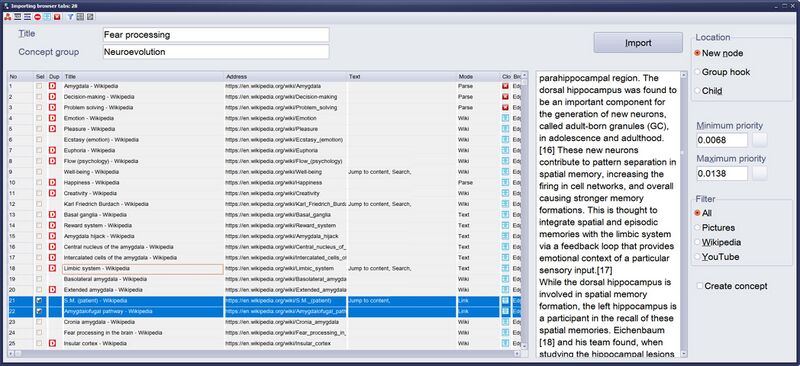
The Web import dialog box consists of the following components:
Controls
- Title - if you choose Location : New node (below), the contents of this field and the date/time will form the title of the node that will parent the imported resources. You can click the Autogenerate title for selected tabs toolbar button to automatically fill it out based on the titles of the sources that are selected in the import list
- Concept group - concept group into which the selected resources will be imported
- Import - import selected browser tabs into the currently opened collection
- Help - display this help page
- list of tabs that are identified as valid import documents (see the list of supported web browsers and visibility limitations such as hidden toolbars, fullscreen view, vertical tabs, etc.)
- No - position of the import tab in the list (i.e. number of the row)
- Sel - checkmark indicating a document that should be imported (when Import is clicked)
- Dup - duplicate icon (documents that have already been imported are marked with the red icon, documents that are tab duplicates are denoted with the blue one)
- Title - title of the resource
- Address - URL of the resource (e.g. page, picture, YouTube video, etc.)
- Text - text preview (if collected); to attempt to retrieve the preview, click this field
- Mode - import mode (e.g. HTML, plain text, parsed, etc.)
- Close - denotes whether the corresponding web browser tab should be closed after the import. Warnings!: This may not work on vertical tabs. Pages that are not selected for import get closed as well.
- Browser - web browser detected (not all browsers can be detected, not all browsers detected provide the full range of options described in this document). This will be used in the #Source field of the reference area that is automatically created for imported articles.
- Text preview - the plain text contents of the selected importable. Click on its title or address (in the import list) to get it.
- Location - determines the location in the Contents window where selected resources will be imported
- New node - the selected rows will be imported as children of a newly added element (called import node). Note that you can specify the title for this element using the Title field at the top of the dialog box (above)
- Group hook - the selected rows will be imported as children of the hook of the currently selected concept group. Note that you can change the concept group to which the selected rows will be imported with the Concept group text field (above)
- Child - the selected rows will be imported as children of the currently displayed element
- Priority - determines the priority of the imported resources. Elements will have their priorities dispersed randomly in the following range:
- Minimum priority - specifies the priority at the low end of the range (as percentage). Note that you can set the minimum priority as the position in the priority queue by adding p (e.g. 33p means minimum priority at position 33 in the priority queue)
- Maximum priority - specifies the priority at the high end of the range (as percentage). Note that you can set the maximum priority as the position in the priority queue by adding p
- Create concept - if you choose Location : New node and select this checkbox, SuperMemo will import the selected importables as children of a newly added import node that will be converted into a concept (the Title field will serve as its name)
Toolbar
- Set Link import mode for selected tabs - change the import mode to Link for each of the web browser tabs that have been chosen in the import list
- Set Plain text import mode for selected tabs - change the import mode to (Plain) Text for each of the web browser tabs that have been chosen in the import list
- Set Parsed HTML import mode for selected tabs - change the import mode to Parsed for each of the web browser tabs that have been chosen in the import list
- Mark selected tabs as "ignore" - instruct SuperMemo not to import all the checked tabs into the collection. You can also consider marking these tabs as "close"
- Mark selected tabs as "keep" - instruct SuperMemo not to close all the checked import tabs in the web browser upon importing them into the collection
- Mark selected tabs as "close" - instruct SuperMemo to close all the checked import tabs in the web browser upon importing them into the collection
- Remove already imported or duplicate tabs - remove from the import list all the tabs that are already in the collection or their duplicates in the web browser
- Browse already imported elements - open the SuperMemo browser with the elements that were already imported from sources in the import list
- Autogenerate title for selected tabs - fill out the Title text box based on the titles of the sources that have been chosen in the import list
- Sources - select the resources only from the selected location or of the selected type in the import list
- YouTube
- Wikipedia
- SuperMemo wikis (i.e. SuperMemopedia, supermemo.guru, this help file)
- PDFs
- Pictures
Menu
- Text (Ctrl+T) - set the (Plain) Text import mode for the active row in the import list
- Link (Ctrl+L) - set the Link import mode for the active row in the import list
- HTML (Ctrl+H) - set the HTML import mode for the active row in the import list
- Parse (Ctrl+P) - set the Parse import mode for the active row in the import list
- Images - set the Img import mode for the active row in the import list
- Ignore - mark the active row to be ignored during import
- Keep - mark the active row to remain open in the web browser upon import
- Close (Alt+C) - mark the active row to be closed in the web browser upon import
- View - bring to front the corresponding tab in the browser and display the already imported element in the element window (if available)
- View in web browser (Double-click) - view the import tab in the web browser
- View in SuperMemo (Ctrl+double-click) - display the already imported element corresponding to the clicked tab in the element window
- Select all (Ctrl+A) - select all the tabs in the import list
- Delete (Del) - remove the active row from the import list and close its corresponding tab in the web browser
- Filter duplicates (Ctrl+F) - remove from the import list all the tabs that are already imported in the collection or duplicate ones in the web browser
- Browse duplicates (Shift+Ctrl+B) - open the SuperMemo browser with the elements from the web import list that have already been imported to the collection
- Exit (Esc) - close the dialog box
SuperMemo 19 does not support formatted PDF imports nor PDF editing. For this, you can import PDFs using methods used in SuperMemo 18. However, you can alternatively import PDFs as plain text with the original file retained as a link. This way, while reading incrementally, you can complete poorly formatted or missing parts of the document (e.g. mathematical formulas, pictures, etc.).
The main advantages of PDF text import are:
- importing directly from the web browser in the same way as HTML
- instant availability of the full text for search in incremental learning
- small size of the document for cases where you import many documents as archives (rather than the material for incremental reading)
To import PDF as text, see if the file was recognized as PDF (in the Mode column in the import list). If not, right-click of the row, and choose Text (Ctrl+T) to indicate the file should be imported as plain text (marked as Text in the Mode column)
Problems
If a web browser tab cannot be closed, its title and URL will remain displayed in the import list (this mostly happens if the tab is closed between collecting and importing tags).
Imports above 100 tabs are annoyingly slow. In some cases, it might block the web browser. If Edge asks "Restart MS Edge?", restarting won't likely affect the import apart from accelerating it (due to releasing some of the resources used).
Close selected or Close all can be carried out by:
- selecting importables,
- marking Close,
- marking Ignore, and
- clicking Import
If you make tabs invisible (e.g. by turning the full-screen mode on with F11), SuperMemo will ignore them. If a YouTube player is in full screen, SuperMemo will also ignore it. The same happens for many other apps.
MS Edge vertical tabs can be detected, some extra tabs may be included (e.g. YouTube panel tabs), but they aren't closed on import. Press Ctrl+Shift+, in Edge to turn the vertical tabs off before collecting them for import in SuperMemo.